<?xml version="1.0" encoding="utf-8"?><feed xmlns="http://www.w3.org/2005/Atom" ><generator uri="https://jekyllrb.com/" version="4.4.1">Jekyll</generator><link href="/feed.xml" rel="self" type="application/atom+xml" /><link href="/" rel="alternate" type="text/html" /><updated>2026-05-06T15:58:45+00:00</updated><id>/feed.xml</id><title type="html">Shell-Curry</title><subtitle>We are a group of developers who love to tinker - but always with a purpose.  Each of our setups differ here and there, but there are huge overlaps in the tools we use.</subtitle><entry><title type="html">difftastic</title><link href="/posts/2025/02/11/difft.html" rel="alternate" type="text/html" title="difftastic" /><published>2025-02-11T00:00:00+00:00</published><updated>2025-02-11T00:00:00+00:00</updated><id>/posts/2025/02/11/difft</id><content type="html" xml:base="/posts/2025/02/11/difft.html"><![CDATA[<p>Sometimes, one forgets … when updating brew this evening.</p>

<p>Difftastic popped up. Well, that rang a bell.</p>

<p>Quick lookup. Yes, it was already installed, but never configured properly. 🤦‍♂️</p>

<p>I quickly added this to my global <code class="language-plaintext highlighter-rouge">.gitconfig</code>:</p>

<div class="language-toml highlighter-rouge"><div class="highlight"><pre class="highlight"><code><span class="k">[</span><span class="n">alias</span><span class="k">]</span>
    <span class="c"># Difftastic aliases, so `git dlog` is `git log` with difftastic and so on.</span>
    <span class="n">dlog</span> <span class="o">=</span><span class="w"> </span><span class="err">-c diff.external=difft log --ext-diff
    dshow = -c diff.external=difft show --ext-diff
    ddiff = -c diff.external=difft diff
</span></code></pre></div></div>

<p>https://github.com/wilfred/difftastic is awesome! 🤩</p>

<p>More on using difftastic with git <a href="https://difftastic.wilfred.me.uk/git.html">on the official docs</a>.</p>]]></content><author><name></name></author><summary type="html"><![CDATA[Sometimes, one forgets … when updating brew this evening.]]></summary></entry><entry><title type="html">Mise replaces ASDF-VM</title><link href="/posts/2025/02/10/mise-replaces-asdf.html" rel="alternate" type="text/html" title="Mise replaces ASDF-VM" /><published>2025-02-10T00:00:00+00:00</published><updated>2025-02-10T00:00:00+00:00</updated><id>/posts/2025/02/10/mise-replaces-asdf</id><content type="html" xml:base="/posts/2025/02/10/mise-replaces-asdf.html"><![CDATA[<p>ASDF regularly timed out on my machine. I was used to this.</p>

<p>But when I cam across this
<a href="https://mise.jdx.dev/dev-tools/comparison-to-asdf.html#asdf-in-go-0-16">blog post</a>
where they tackled mise’s concept of security - was when I knew, I had to try.</p>

<p>And, well, as harsh as it may sound, but:</p>

<blockquote>
  <p>ASDF, farewell old friend, you were the successor of <a href="https://rvm.io">rvm</a> and
all good things come to an end.</p>
</blockquote>

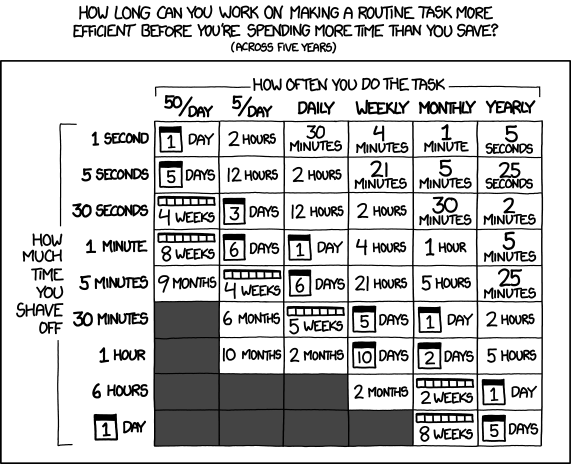
<p><code class="language-plaintext highlighter-rouge">mise</code> will take over from now on my machines.</p>]]></content><author><name>@simonneutert</name></author><summary type="html"><![CDATA[ASDF regularly timed out on my machine. I was used to this.]]></summary></entry><entry><title type="html">Developers and Laziness: A Perfect Match</title><link href="/posts/2025/01/07/lazy.html" rel="alternate" type="text/html" title="Developers and Laziness: A Perfect Match" /><published>2025-01-07T00:00:00+00:00</published><updated>2025-01-07T00:00:00+00:00</updated><id>/posts/2025/01/07/lazy</id><content type="html" xml:base="/posts/2025/01/07/lazy.html"><![CDATA[<p>When it comes to developers, laziness isn’t a flaw—it’s a superpower. Think about it: lazy evaluation of code, writing less code to reduce complexity (when done right), and automating everything in sight. If there’s a task we do more than once, the instinct to script it away is practically second nature.</p>

<p>And yes, let’s not forget: <strong>automate, automate, automate.</strong></p>

<p><img src="https://imgs.xkcd.com/comics/is_it_worth_the_time.png" alt="xkcd comic about automating tasks" /></p>
<blockquote>
  <p>Source: <a href="https://xkcd.com/1205">xkcd #1205</a></p>
</blockquote>

<p>But wait… this doesn’t sound lazy anymore, does it? Okay, back to the topic.</p>

<hr />

<h2 id="the-lazy-way-to-work-smarter">The “Lazy” Way to Work Smarter</h2>

<p>Managing Git and Docker without leaving the terminal? That’s not just efficient—it’s what I like to call <em>context-switching laziness</em>. Why waste precious brainpower jumping between windows when you can stay in your flow?</p>

<p>Here are two amazing tools that embody the true spirit of developer laziness (and productivity):</p>

<ul>
  <li><strong><a href="https://github.com/jesseduffield/lazygit">Lazygit</a>:</strong> A simple terminal UI for Git commands.</li>
  <li><strong><a href="https://github.com/jesseduffield/lazydocker">Lazydocker</a>:</strong> A terminal UI for managing Docker.</li>
</ul>

<p>Give them a try—you might just find that “being lazy” is the smartest move you’ve made today.</p>

<p>Are you a visual learner? <br />
<a href="https://www.youtube.com/watch?v=CPLdltN7wgE">15 Lazygit Features in Under 15 Minutes</a>@YouTube</p>]]></content><author><name>@simonneutert</name></author><summary type="html"><![CDATA[When it comes to developers, laziness isn’t a flaw—it’s a superpower. Think about it: lazy evaluation of code, writing less code to reduce complexity (when done right), and automating everything in sight. If there’s a task we do more than once, the instinct to script it away is practically second nature.]]></summary></entry><entry><title type="html">Rust Terminal Tools That You Should Use - as mentioned @RustLab (2024)</title><link href="/posts/2024/12/27/modern-rust-tools.html" rel="alternate" type="text/html" title="Rust Terminal Tools That You Should Use - as mentioned @RustLab (2024)" /><published>2024-12-27T00:00:00+00:00</published><updated>2024-12-27T00:00:00+00:00</updated><id>/posts/2024/12/27/modern-rust-tools</id><content type="html" xml:base="/posts/2024/12/27/modern-rust-tools.html"><![CDATA[<p>As Lukas Podolski famously said,</p>

<blockquote>
  <p>“What can be rewritten in Rust, will be rewritten in Rust.”</p>
</blockquote>

<p>This list is inspired by the video <a href="https://www.youtube.com/watch?v=ATiKwUiqnAU">“7 Rust Terminal Tools That You Should Use — RustLab 2024”</a> and its comment section.</p>

<p>Some of these tools are built with <a href="https://ratatui.rs">Ratatui</a>, a TUI framework for Rust.</p>

<ul>
  <li><a href="https://github.com/AmmarAbouZor/tui-journal">tui-journal</a> Your journal app if you live in a terminal</li>
  <li><a href="https://github.com/acheronfail/repgrep">repgrep</a> An interactive replacer for ripgrep that makes it easy to find and replace across files on the command line.</li>
  <li><a href="https://github.com/lusingander/serie">serie</a> A rich git commit graph in your terminal, like magic 📚</li>
  <li><a href="https://github.com/achristmascarl/rainfrog">rainfrog</a> 🐸 a database management tui for postgres. mysql and sqlite are also supported, but they are currently unstable (end of 2024)</li>
  <li><a href="https://github.com/Chleba/netscanner">netscanner</a> Terminal Network scanner &amp; diagnostic tool with modern TUI</li>
  <li><a href="https://github.com/junkdog/glim">glim</a> A TUI for monitoring GitLab CI/CD pipelines and projects</li>
  <li>
    <p><a href="https://github.com/Julien-cpsn/ATAC">atac</a> A simple API client (postman like) in your terminal</p>
  </li>
  <li><a href="https://github.com/sigoden/aichat">aichat</a> All-in-one LLM CLI tool featuring Shell Assistant, Chat-REPL, RAG, AI tools &amp; agents, with access to OpenAI, Claude, Gemini, Ollama, Groq, and more.</li>
  <li><a href="https://github.com/rust-util-collections/btm">btm</a> Blockchain time machine</li>
  <li><a href="https://github.com/dalance/procs">procs</a> A modern replacement for ps written in Rust</li>
  <li><a href="https://github.com/tealdeer-rs/tealdeer">tealdeer</a> A very fast implementation of tldr in Rust</li>
  <li><a href="https://github.com/orhun/git-cliff">git-cliff</a> A highly customizable Changelog Generator that follows Conventional Commit specifications ⛰️</li>
</ul>

<h3 id="not-a-tool-but-crazy-cool">Not a Tool, But Crazy Cool:</h3>

<ul>
  <li><a href="https://github.com/Amjad50/plastic">plastic</a> NES emulator in rust with egui and TUI</li>
</ul>]]></content><author><name>@simonneutert</name></author><summary type="html"><![CDATA[As Lukas Podolski famously said,]]></summary></entry><entry><title type="html">Manage your software with Homebrew on Mac AND Linux</title><link href="/posts/2024/12/16/backup-brewfile.html" rel="alternate" type="text/html" title="Manage your software with Homebrew on Mac AND Linux" /><published>2024-12-16T00:00:00+00:00</published><updated>2024-12-16T00:00:00+00:00</updated><id>/posts/2024/12/16/backup-brewfile</id><content type="html" xml:base="/posts/2024/12/16/backup-brewfile.html"><![CDATA[<p>Did you know that you can back up your <code class="language-plaintext highlighter-rouge">Brewfile</code>? It’s a great way to keep track of all the software you’ve installed on your Linux or Mac system.</p>

<p>Wait, <code class="language-plaintext highlighter-rouge">Homebrew</code> on Linux? Absolutely! It’s a fantastic package manager for Linux as well. You can use it to manage your CLI tools and maintain a clean, organized system.</p>

<hr />

<h3 id="back-up-your-brewfile">Back Up Your <code class="language-plaintext highlighter-rouge">Brewfile</code></h3>

<p>Here’s how to back up your <code class="language-plaintext highlighter-rouge">Brewfile</code>:</p>

<ol>
  <li>Open a terminal</li>
  <li>Run <code class="language-plaintext highlighter-rouge">brew bundle dump --file=~/Brewfile --describe</code></li>
</ol>

<ul>
  <li><code class="language-plaintext highlighter-rouge">--file</code> specifies the location of the <code class="language-plaintext highlighter-rouge">Brewfile</code> to be created.</li>
  <li><code class="language-plaintext highlighter-rouge">--describe</code> adds a comment to each line in the <code class="language-plaintext highlighter-rouge">Brewfile</code> with a description of the formula, unless the dependency does not have a description. This option is enabled by default if <code class="language-plaintext highlighter-rouge">HOMEBREW_BUNDLE_DUMP_DESCRIBE</code> is set.</li>
</ul>

<p>You can now commit this file to your <code class="language-plaintext highlighter-rouge">dotfiles</code> repository or store it in a cloud storage solution to keep it in sync across all your machines.</p>

<h4 id="restore-your-brewfile">Restore your <code class="language-plaintext highlighter-rouge">Brewfile</code></h4>

<p>To restore your <code class="language-plaintext highlighter-rouge">Brewfile</code> on a new machine, you can run:</p>

<div class="language-bash highlighter-rouge"><div class="highlight"><pre class="highlight"><code>brew bundle <span class="nt">--file</span><span class="o">=</span>~/Brewfile <span class="c"># `--file` specifies the location of the Brewfile</span>
</code></pre></div></div>

<p>This will install all the software listed in your <code class="language-plaintext highlighter-rouge">Brewfile</code>.</p>

<h3 id="linuxbrew-really-why">Linuxbrew? Really? Why?</h3>

<p><a href="https://docs.brew.sh/Homebrew-on-Linux">Linuxbrew, the Linux port of Homebrew</a>, is a package manager that simplifies the installation of software on Linux. It allows users to install programs without requiring root permissions, making it ideal for environments where administrative access is limited. With Linuxbrew, software is installed in the user’s home directory, ensuring a clean and customizable setup. It also handles dependencies automatically and offers a vast collection of up-to-date packages, making it a convenient choice for developers, system admins, and hobbyists.</p>

<ul>
  <li>No Root Permissions Needed: Install software without requiring administrative access.</li>
  <li>User-Friendly: Easy to use, with commands that are straightforward and consistent.</li>
  <li>Customizable Setup: Installs programs in the user’s home directory, avoiding system-wide changes.</li>
  <li>Automatic Dependency Management: Handles dependencies seamlessly, saving time and effort.</li>
  <li>Extensive Package Collection: Provides access to a large repository of up-to-date software.</li>
  <li>Cross-Platform Consistency: Familiar to users of macOS Homebrew, enabling an easier transition.</li>
  <li>Perfect for Shared Environments: Works well on systems where root access is restricted.</li>
</ul>]]></content><author><name>@simonneutert</name></author><summary type="html"><![CDATA[Did you know that you can back up your Brewfile? It’s a great way to keep track of all the software you’ve installed on your Linux or Mac system.]]></summary></entry><entry><title type="html">A Dockered Example for a spiced zsh on Debian 12</title><link href="/posts/2024/12/15/a-dockered-example.html" rel="alternate" type="text/html" title="A Dockered Example for a spiced zsh on Debian 12" /><published>2024-12-15T00:00:00+00:00</published><updated>2024-12-15T00:00:00+00:00</updated><id>/posts/2024/12/15/a-dockered-example</id><content type="html" xml:base="/posts/2024/12/15/a-dockered-example.html"><![CDATA[<p>It’s always nice to have a <code class="language-plaintext highlighter-rouge">Dockerfile</code> to start from. Here is an example of a <code class="language-plaintext highlighter-rouge">Dockerfile</code> that brings some of the tools and plugins mentioned in the <a href="/posts/2024/12/14/debian12-simon.html">previous post</a>.</p>

<p>Here’s a link to the repository. You’ll find the Documenation there, too ✌️</p>

<p><a href="https://github.com/simonneutert/shell-curry-debian-12-example">simonneutert/shell-curry-debian-12-example</a>@github</p>

<h2 id="fire-it-up">Fire it up</h2>

<div class="language-bash highlighter-rouge"><div class="highlight"><pre class="highlight"><code><span class="nv">$ </span>docker run <span class="nt">-it</span> <span class="nt">--rm</span> <span class="se">\</span>
    ghcr.io/simonneutert/shell-curry-debian-12-example:main
</code></pre></div></div>

<p>Inside Docker/zsh you can now type <code class="language-plaintext highlighter-rouge">batcat GET_STARTED.md</code> and complete the setup process. <br />
<em>(After having run the init.zsh script, <code class="language-plaintext highlighter-rouge">batcat</code> will be available as <code class="language-plaintext highlighter-rouge">bat</code>.)</em></p>

<p><strong>Setup process inside the dockered zsh</strong></p>

<ul>
  <li><code class="language-plaintext highlighter-rouge">$ zsh init.zsh</code> # and confirm with y</li>
  <li><code class="language-plaintext highlighter-rouge">$ source .zshrc</code></li>
  <li><code class="language-plaintext highlighter-rouge">$ bat ./.zsh_aliases</code> and off you go</li>
</ul>]]></content><author><name>@simonneutert</name></author><summary type="html"><![CDATA[It’s always nice to have a Dockerfile to start from. Here is an example of a Dockerfile that brings some of the tools and plugins mentioned in the previous post.]]></summary></entry><entry><title type="html">Example Setup with Debian 12</title><link href="/posts/2024/12/14/debian12-simon.html" rel="alternate" type="text/html" title="Example Setup with Debian 12" /><published>2024-12-14T13:54:12+00:00</published><updated>2024-12-14T13:54:12+00:00</updated><id>/posts/2024/12/14/debian12-simon</id><content type="html" xml:base="/posts/2024/12/14/debian12-simon.html"><![CDATA[<p>Overviews of how to set up a modern terminal are a dime a dozen, but they are all different. This is my take on it.</p>

<p>Here’s what you will end up with:</p>

<ul>
  <li><code class="language-plaintext highlighter-rouge">zsh</code> as your shell</li>
  <li><code class="language-plaintext highlighter-rouge">starship.rs</code> as your prompt</li>
  <li><code class="language-plaintext highlighter-rouge">asdf-vm</code> to manage your languages</li>
  <li><code class="language-plaintext highlighter-rouge">zsh-syntax-highlighting</code></li>
  <li><code class="language-plaintext highlighter-rouge">zsh-autosuggestions</code></li>
  <li><code class="language-plaintext highlighter-rouge">zsh-autocomplete</code></li>
  <li><code class="language-plaintext highlighter-rouge">nerd-fonts</code> Firacode</li>
  <li><code class="language-plaintext highlighter-rouge">direnv</code></li>
  <li><code class="language-plaintext highlighter-rouge">nodejs</code></li>
  <li><code class="language-plaintext highlighter-rouge">just</code> for a modern <code class="language-plaintext highlighter-rouge">make</code></li>
  <li><code class="language-plaintext highlighter-rouge">zoxide</code> for a modern <code class="language-plaintext highlighter-rouge">cd</code></li>
  <li><code class="language-plaintext highlighter-rouge">bat</code> for a modern <code class="language-plaintext highlighter-rouge">cat</code></li>
  <li><code class="language-plaintext highlighter-rouge">btop</code> for a modern <code class="language-plaintext highlighter-rouge">top</code></li>
  <li><code class="language-plaintext highlighter-rouge">lsd</code> for a colorful <code class="language-plaintext highlighter-rouge">ls</code></li>
  <li><code class="language-plaintext highlighter-rouge">duc</code> for a modern <code class="language-plaintext highlighter-rouge">du</code></li>
  <li><code class="language-plaintext highlighter-rouge">duf</code> for a modern <code class="language-plaintext highlighter-rouge">df</code></li>
</ul>

<h2 id="end-result">End Result</h2>

<p>The completed <code class="language-plaintext highlighter-rouge">zshrc</code> and <code class="language-plaintext highlighter-rouge">zsh_aliases</code> files can be found at the end of this guide.</p>

<h2 id="a-word-of-warning">A word of warning</h2>

<p>This guide is for Debian 12. If you are on a different system, some of the commands might not work.</p>

<p>And more importantly, please don’t just copy and paste the commands. Go visit the websites of the tools (probably GitHub) and read the docs. This is just a starting point. You will have to make these tools work for you in the end.</p>

<hr />

<p>Time to spice up your terminal! 🌶️ 🍛</p>

<hr />

<h2 id="prerequisites">Prerequisites</h2>

<p>Create a fresh System/Machine/VM with debian12</p>

<h2 id="goodbye-bash-hello-zsh">Goodbye <code class="language-plaintext highlighter-rouge">bash</code>, hello <code class="language-plaintext highlighter-rouge">zsh</code>!</h2>

<ol>
  <li><code class="language-plaintext highlighter-rouge">$ sudo apt update -y</code></li>
  <li><code class="language-plaintext highlighter-rouge">$ sudo apt install git zsh</code></li>
  <li><code class="language-plaintext highlighter-rouge">$ sudo chsh -s $(which zsh) $USER</code></li>
</ol>

<p>Now <code class="language-plaintext highlighter-rouge">exit</code> and log back in.</p>

<p>When prompted with <code class="language-plaintext highlighter-rouge">zsh</code> welcome, choose <code class="language-plaintext highlighter-rouge">0</code> (zero).</p>

<blockquote>
  <p>Exit, creating the file <code class="language-plaintext highlighter-rouge">~/.zshrc</code> containing just a comment.
That will prevent this function being run again.</p>
</blockquote>

<p>Baseline configuration, edit <code class="language-plaintext highlighter-rouge">~/.zshrc</code>:</p>

<div class="language-bash highlighter-rouge"><div class="highlight"><pre class="highlight"><code><span class="nv">HISTFILE</span><span class="o">=</span>~/.histfile
<span class="nv">HISTSIZE</span><span class="o">=</span>1000
<span class="nv">SAVEHIST</span><span class="o">=</span>1000
setopt appendhistory
setopt extendedhistory
setopt hist_ignore_dups
setopt hist_ignore_space
setopt autocd
</code></pre></div></div>

<h2 id="nerd-fonts">Nerd-Fonts</h2>

<p><code class="language-plaintext highlighter-rouge">$ sudo apt install fonts-firacode</code></p>

<h2 id="starshiprs">starship.rs</h2>

<p>Install with Starship’s interactive script (you need <code class="language-plaintext highlighter-rouge">sudo</code> rights):</p>

<p><code class="language-plaintext highlighter-rouge">$ curl -sS https://starship.rs/install.sh | sh</code></p>

<p>Post-installation, add the following to your <code class="language-plaintext highlighter-rouge">.zshrc</code>:</p>

<p><code class="language-plaintext highlighter-rouge">$ echo 'eval "$(starship init zsh)"' &gt;&gt; ~/.zshrc</code></p>

<p>Then reload your shell:</p>

<p><code class="language-plaintext highlighter-rouge">$ source ~/.zshrc</code></p>

<p>🌟✨💅</p>

<h2 id="install-asdf-vm">Install <code class="language-plaintext highlighter-rouge">asdf-vm</code></h2>

<p><code class="language-plaintext highlighter-rouge">$ cd; git clone https://github.com/asdf-vm/asdf.git ~/.asdf --branch v0.14.1</code></p>

<p>Now you need to make <code class="language-plaintext highlighter-rouge">asdf-vm</code> available in your shell.</p>

<p>This is what your <code class="language-plaintext highlighter-rouge">.zshrc</code> should look like at this point in time:</p>

<div class="language-bash highlighter-rouge"><div class="highlight"><pre class="highlight"><code><span class="nv">HISTFILE</span><span class="o">=</span>~/.histfile
<span class="nv">HISTSIZE</span><span class="o">=</span>1000
<span class="nv">SAVEHIST</span><span class="o">=</span>1000
setopt appendhistory
setopt extendedhistory
setopt hist_ignore_dups
setopt hist_ignore_space
setopt autocd

<span class="c"># append completions to fpath</span>
<span class="nv">fpath</span><span class="o">=(</span><span class="k">${</span><span class="nv">ASDF_DIR</span><span class="k">}</span>/completions <span class="nv">$fpath</span><span class="o">)</span>
<span class="c"># initialise completions with ZSH's compinit</span>
autoload <span class="nt">-Uz</span> compinit <span class="o">&amp;&amp;</span> compinit
<span class="nb">eval</span> <span class="s2">"</span><span class="si">$(</span>starship init zsh<span class="si">)</span><span class="s2">"</span>
<span class="nb">source</span> <span class="s2">"</span><span class="nv">$HOME</span><span class="s2">/.asdf/asdf.sh"</span>
</code></pre></div></div>

<p>Resource your shell:</p>

<p><code class="language-plaintext highlighter-rouge">$ source ~/.zshrc</code></p>

<p>https://asdf-vm.com/more/faq.html#shell-not-detecting-newly-installed-shims</p>

<h3 id="add-asdf-plugins">Add <code class="language-plaintext highlighter-rouge">asdf</code> plugins</h3>

<p>Let’s install a language and some more tools</p>

<div class="language-bash highlighter-rouge"><div class="highlight"><pre class="highlight"><code>asdf plugin-add nodejs
asdf plugin-add just
asdf plugin-add direnv
</code></pre></div></div>

<h3 id="install-some-versions">Install some versions</h3>

<div class="language-bash highlighter-rouge"><div class="highlight"><pre class="highlight"><code>asdf <span class="nb">install </span>nodejs latest
asdf <span class="nb">install </span>just latest
asdf <span class="nb">install </span>direnv latest
</code></pre></div></div>

<h3 id="set-global-versions">Set global versions</h3>

<div class="language-bash highlighter-rouge"><div class="highlight"><pre class="highlight"><code>asdf global nodejs latest
asdf global just latest
asdf global direnv latest
</code></pre></div></div>

<p>Reshim asdf (to make the versions available in your shell):</p>

<div class="language-bash highlighter-rouge"><div class="highlight"><pre class="highlight"><code>asdf reshim
just <span class="nt">--version</span>
node <span class="nt">--version</span>
</code></pre></div></div>

<h3 id="enable-direnv">enable <code class="language-plaintext highlighter-rouge">direnv</code></h3>

<p>Add the following to your <code class="language-plaintext highlighter-rouge">.zshrc</code>:</p>

<div class="language-bash highlighter-rouge"><div class="highlight"><pre class="highlight"><code><span class="nb">echo</span> <span class="s1">'eval "$(direnv hook zsh)"'</span> <span class="o">&gt;&gt;</span> ~/.zshrc
</code></pre></div></div>

<h2 id="make-zsh-work-for-you">Make <code class="language-plaintext highlighter-rouge">zsh</code> work for you</h2>

<p>Time for some <code class="language-plaintext highlighter-rouge">zsh</code> plugins!</p>

<h3 id="zsh-plugin-zsh-syntax-highlighting">zsh plugin: zsh-syntax-highlighting</h3>

<p>This plugin highlights commands as you type them.</p>

<div class="language-bash highlighter-rouge"><div class="highlight"><pre class="highlight"><code><span class="nv">$ </span><span class="nb">sudo </span>apt <span class="nb">install </span>zsh-syntax-highlighting
<span class="nv">$ </span><span class="nb">echo</span> <span class="s2">"source /usr/share/zsh-syntax-highlighting/zsh-syntax-highlighting.zsh"</span> <span class="o">&gt;&gt;</span> <span class="k">${</span><span class="nv">ZDOTDIR</span><span class="k">:-</span><span class="nv">$HOME</span><span class="k">}</span>/.zshrc
</code></pre></div></div>

<h3 id="zsh-plugin-zsh-autosuggestions">zsh plugin: zsh-autosuggestions</h3>

<p>Uses the history to suggest commands as you type. Navigate through the suggestions with the option/alt plus arrow keys or accept the suggestion with the right arrow key.</p>

<p>We install using git (the deb package did not work for me):</p>

<div class="language-bash highlighter-rouge"><div class="highlight"><pre class="highlight"><code><span class="nv">$ </span>git clone https://github.com/zsh-users/zsh-autosuggestions ~/.zsh/zsh-autosuggestions
<span class="nv">$ </span><span class="nb">echo</span> <span class="s1">'source ~/.zsh/zsh-autosuggestions/zsh-autosuggestions.zsh'</span> <span class="o">&gt;&gt;</span> ~/.zshrc
</code></pre></div></div>

<h3 id="zsh-plugin-zsh-autocomplete">zsh plugin: zsh-autocomplete</h3>

<p>This will automagically show options and help.</p>

<div class="language-bash highlighter-rouge"><div class="highlight"><pre class="highlight"><code><span class="nv">$ </span>git clone <span class="nt">--depth</span> 1 <span class="nt">--</span> https://github.com/marlonrichert/zsh-autocomplete.git ~/.zsh/zsh-autocomplete<span class="p">;</span>
</code></pre></div></div>

<div class="language-bash highlighter-rouge"><div class="highlight"><pre class="highlight"><code><span class="nv">$ </span><span class="nb">echo</span> <span class="s2">"source </span><span class="nv">$HOME</span><span class="s2">/.zsh/zsh-autocomplete/zsh-autocomplete.plugin.zsh"</span> <span class="o">&gt;&gt;</span> ~/.zshrc
</code></pre></div></div>

<p>Then force reload the current shell:</p>

<div class="language-bash highlighter-rouge"><div class="highlight"><pre class="highlight"><code><span class="nv">$ </span><span class="nb">exec </span>zsh
</code></pre></div></div>

<p>Try typing: <code class="language-plaintext highlighter-rouge">cp -r</code></p>

<h2 id="install-some-tools">Install some tools</h2>

<p><code class="language-plaintext highlighter-rouge">bat</code>, <code class="language-plaintext highlighter-rouge">btop</code>, <code class="language-plaintext highlighter-rouge">lsd</code>, <code class="language-plaintext highlighter-rouge">duc</code>, <code class="language-plaintext highlighter-rouge">duf</code> and <code class="language-plaintext highlighter-rouge">tldr</code></p>

<p><code class="language-plaintext highlighter-rouge">$ sudo apt install -y --no-install-recommends bat btop lsd duc duf tldr</code></p>

<p>Have a read on <code class="language-plaintext highlighter-rouge">duc</code> and <code class="language-plaintext highlighter-rouge">duf</code> <a href="https://www.ubuntumint.com/du-command-alternatives-linux/">@ubuntumint.com/du-command-alternatives-linux/</a></p>

<p>Or just try them out! <code class="language-plaintext highlighter-rouge">$ tldr duc</code> and <code class="language-plaintext highlighter-rouge">$ tldr duf</code></p>

<h3 id="zoxide">zoxide</h3>

<p>It sounds scary at first. But once you trust it, you will never go back.</p>

<div class="language-bash highlighter-rouge"><div class="highlight"><pre class="highlight"><code><span class="nv">$ </span>curl <span class="nt">-sS</span> https://raw.githubusercontent.com/ajeetdsouza/zoxide/main/install.sh | bash
<span class="nv">$ </span><span class="nb">echo</span> <span class="s1">'eval "$(zoxide init zsh)"'</span> <span class="o">&gt;&gt;</span> ~/.zshrc
</code></pre></div></div>

<p>Add <code class="language-plaintext highlighter-rouge">zoxide</code> to your PATH:</p>

<div class="language-bash highlighter-rouge"><div class="highlight"><pre class="highlight"><code><span class="nb">export </span><span class="nv">PATH</span><span class="o">=</span><span class="s2">"</span><span class="nv">$HOME</span><span class="s2">/.local/bin:</span><span class="nv">$PATH</span><span class="s2">"</span>
</code></pre></div></div>

<p>No need to enter the full path to a directory anymore. Just type <code class="language-plaintext highlighter-rouge">cd &lt;directory&gt;</code> (or <code class="language-plaintext highlighter-rouge">z &lt;directory&gt;</code> if you didn’t alias it, though I highly recommend doing so!) and <code class="language-plaintext highlighter-rouge">zoxide</code> will take you there.</p>

<h3 id="config-aliases-overwrite-the-defaults">Config aliases (Overwrite the defaults)</h3>

<p>Create a <code class="language-plaintext highlighter-rouge">.zsh_aliases</code> file in your home directory:</p>

<div class="language-bash highlighter-rouge"><div class="highlight"><pre class="highlight"><code><span class="nv">$ </span><span class="nb">touch</span> ~/.zsh_aliases
</code></pre></div></div>

<p>Make <code class="language-plaintext highlighter-rouge">zsh</code> use a <code class="language-plaintext highlighter-rouge">.zsh_aliases</code> file, add this to your <code class="language-plaintext highlighter-rouge">.zshrc</code>:</p>

<div class="language-bash highlighter-rouge"><div class="highlight"><pre class="highlight"><code><span class="k">if</span> <span class="o">[</span><span class="nt">-f</span> ~/.zsh_aliases <span class="o">]</span><span class="p">;</span> <span class="k">then
  </span><span class="nb">source</span> ~/.zsh_aliases
<span class="k">fi</span>
</code></pre></div></div>

<p>Add some aliases to <code class="language-plaintext highlighter-rouge">~/.zsh_aliases</code>:</p>

<div class="language-bash highlighter-rouge"><div class="highlight"><pre class="highlight"><code><span class="nb">alias cd</span><span class="o">=</span><span class="s1">'z'</span>
<span class="nb">alias ls</span><span class="o">=</span><span class="s1">'lsd'</span>
<span class="nb">alias </span><span class="nv">bat</span><span class="o">=</span><span class="s1">'batcat'</span> <span class="c"># bat is installed as batcat on debian, to avoid conflicts</span>
<span class="nb">alias </span><span class="nv">top</span><span class="o">=</span><span class="s1">'btop'</span>
<span class="nb">alias </span><span class="nv">htop</span><span class="o">=</span><span class="s1">'btop'</span> <span class="c"># if you are muscle memory bound to htop</span>
<span class="nb">alias du</span><span class="o">=</span><span class="s1">'duc'</span>
<span class="nb">alias df</span><span class="o">=</span><span class="s1">'duf'</span>
</code></pre></div></div>

<h2 id="state-of-your-zshrc">State of your <code class="language-plaintext highlighter-rouge">.zshrc</code></h2>

<p>After all these steps, your <code class="language-plaintext highlighter-rouge">.zshrc</code> should look like this:</p>

<div class="language-bash highlighter-rouge"><div class="highlight"><pre class="highlight"><code><span class="nv">HISTFILE</span><span class="o">=</span>~/.histfile
<span class="nv">HISTSIZE</span><span class="o">=</span>1000
<span class="nv">SAVEHIST</span><span class="o">=</span>1000
setopt appendhistory
setopt extendedhistory
setopt hist_ignore_dups
setopt hist_ignore_space
setopt autocd

<span class="nb">export </span><span class="nv">PATH</span><span class="o">=</span><span class="s2">"</span><span class="nv">$HOME</span><span class="s2">/.local/bin:</span><span class="nv">$PATH</span><span class="s2">"</span>

<span class="nb">source</span> <span class="s2">"</span><span class="nv">$HOME</span><span class="s2">/.asdf/asdf.sh"</span>
<span class="nb">source</span> /usr/share/zsh-syntax-highlighting/zsh-syntax-highlighting.zsh
<span class="nb">source</span> ~/.zsh/zsh-autosuggestions/zsh-autosuggestions.zsh
<span class="nb">source</span> ~/.zsh/zsh-autocomplete/zsh-autocomplete.plugin.zsh

<span class="nb">eval</span> <span class="s2">"</span><span class="si">$(</span>starship init zsh<span class="si">)</span><span class="s2">"</span>
<span class="nb">eval</span> <span class="s2">"</span><span class="si">$(</span>zoxide init zsh<span class="si">)</span><span class="s2">"</span>
<span class="nb">eval</span> <span class="s2">"</span><span class="si">$(</span>direnv hook zsh<span class="si">)</span><span class="s2">"</span>

<span class="k">if</span> <span class="o">[</span> <span class="nt">-f</span> ~/.zsh_aliases <span class="o">]</span><span class="p">;</span> <span class="k">then
</span><span class="nb">source</span> ~/.zsh_aliases
<span class="k">fi</span>

<span class="c"># append completions to fpath</span>
<span class="nv">fpath</span><span class="o">=(</span><span class="k">${</span><span class="nv">ASDF_DIR</span><span class="k">}</span>/completions <span class="nv">$fpath</span><span class="o">)</span>
<span class="c"># initialise completions with ZSH's compinit</span>
autoload <span class="nt">-Uz</span> compinit <span class="o">&amp;&amp;</span> compinit
</code></pre></div></div>

<p>And for completeness, your <code class="language-plaintext highlighter-rouge">.zsh_aliases</code>:</p>

<div class="language-bash highlighter-rouge"><div class="highlight"><pre class="highlight"><code><span class="nb">alias cd</span><span class="o">=</span><span class="s2">"z"</span>
<span class="nb">alias ls</span><span class="o">=</span><span class="s1">'lsd'</span>
<span class="nb">alias </span><span class="nv">bat</span><span class="o">=</span><span class="s1">'batcat'</span>
<span class="nb">alias </span><span class="nv">top</span><span class="o">=</span><span class="s1">'btop'</span>
<span class="nb">alias </span><span class="nv">htop</span><span class="o">=</span><span class="s1">'btop'</span> <span class="c"># if you are muscle memory bound to htop</span>
<span class="nb">alias du</span><span class="o">=</span><span class="s1">'duc'</span>
<span class="nb">alias df</span><span class="o">=</span><span class="s1">'duf'</span>
</code></pre></div></div>

<h2 id="setopt-zsh-options"><code class="language-plaintext highlighter-rouge">setopt zsh</code> options</h2>

<p>We added <code class="language-plaintext highlighter-rouge">setopt autocd</code> to our <code class="language-plaintext highlighter-rouge">.zshrc</code> earlier. This is a <code class="language-plaintext highlighter-rouge">zsh</code> option. There are many more.</p>

<p><code class="language-plaintext highlighter-rouge">autocd</code> is a <code class="language-plaintext highlighter-rouge">zsh</code> option that allows you to go up one directory level with <code class="language-plaintext highlighter-rouge">..</code> instead of <code class="language-plaintext highlighter-rouge">cd ..</code>.</p>

<h2 id="conclusion">Conclusion</h2>

<p>With this setup, you have a modern shell with a modern prompt, modern tools, and modern plugins. For a developer, this is a good starting point. Now go and browse the docs of the tools you installed and make them work for you!</p>

<p>Better yet, find some tools here on the site that you find interesting and install them.</p>]]></content><author><name>@simonneutert</name></author><summary type="html"><![CDATA[Overviews of how to set up a modern terminal are a dime a dozen, but they are all different. This is my take on it.]]></summary></entry><entry><title type="html">The kitchen is open!</title><link href="/posts/2024/12/13/kickoff.html" rel="alternate" type="text/html" title="The kitchen is open!" /><published>2024-12-13T13:54:12+00:00</published><updated>2024-12-13T13:54:12+00:00</updated><id>/posts/2024/12/13/kickoff</id><content type="html" xml:base="/posts/2024/12/13/kickoff.html"><![CDATA[<p>Does the following image make you feel sad?</p>

<p><img src="/assets/2024/12/13/kickoff.png" alt="screenshot of a plain, unsalted terminal" style="width: 100%;" /></p>

<p>No wonder! We all know someone whose terminal is their sanctuary of joy and
productivity.</p>

<h3 id="not-sure-where-to-start">Not Sure Where to Start?</h3>

<p>We’ve got your back! Soon, we’ll be sharing bite-sized guides on how to spice up
your terminal.</p>

<h3 id="no-need-to-invest-a-lot-of-time">No Need to Invest a Lot of Time!</h3>

<p>For some developers, the quest for the perfect setup is a never-ending journey.
For others, it barely registers on their radar.</p>

<p>For us? It’s a delightful side quest that never quite ends.</p>

<p><strong>But for you, it could be just a 30-minute adventure.</strong></p>

<p>We’re keeping things practical as we share our discoveries with you. While we’re
developers who love to tinker, we always do it with purpose. Though each of our
setups is unique, we’ve found ourselves gravitating toward many of the same
tools.</p>

<p>We’re just a bunch of developers who love fine-tuning our environments, and
we’re excited to share what we’ve learned with you! 🤗</p>]]></content><author><name>@simonneutert</name></author><summary type="html"><![CDATA[Does the following image make you feel sad?]]></summary></entry></feed>